Monitor chat
The chat feature is opened under User settings. A chat is a type of instant message between you and other persons in the company in Monitor ERP. The chat function can only be used when the logged-in user is linked/tied to an employee. You register this link in the Personnel records – General procedure.
In the Monitor chat there is a tab where you select with which persons you wish to chat. Under another tab you can see saved conversations. Here you can also choose if you want to mark them as already read, hide them, or restart the conversation. The chat window is similar to other programs for instant messaging, for example, Teams. The chat function in Monitor ERP can also be used to send image files and Monitor hyperlinks between you and other persons at the company.
 Recipient
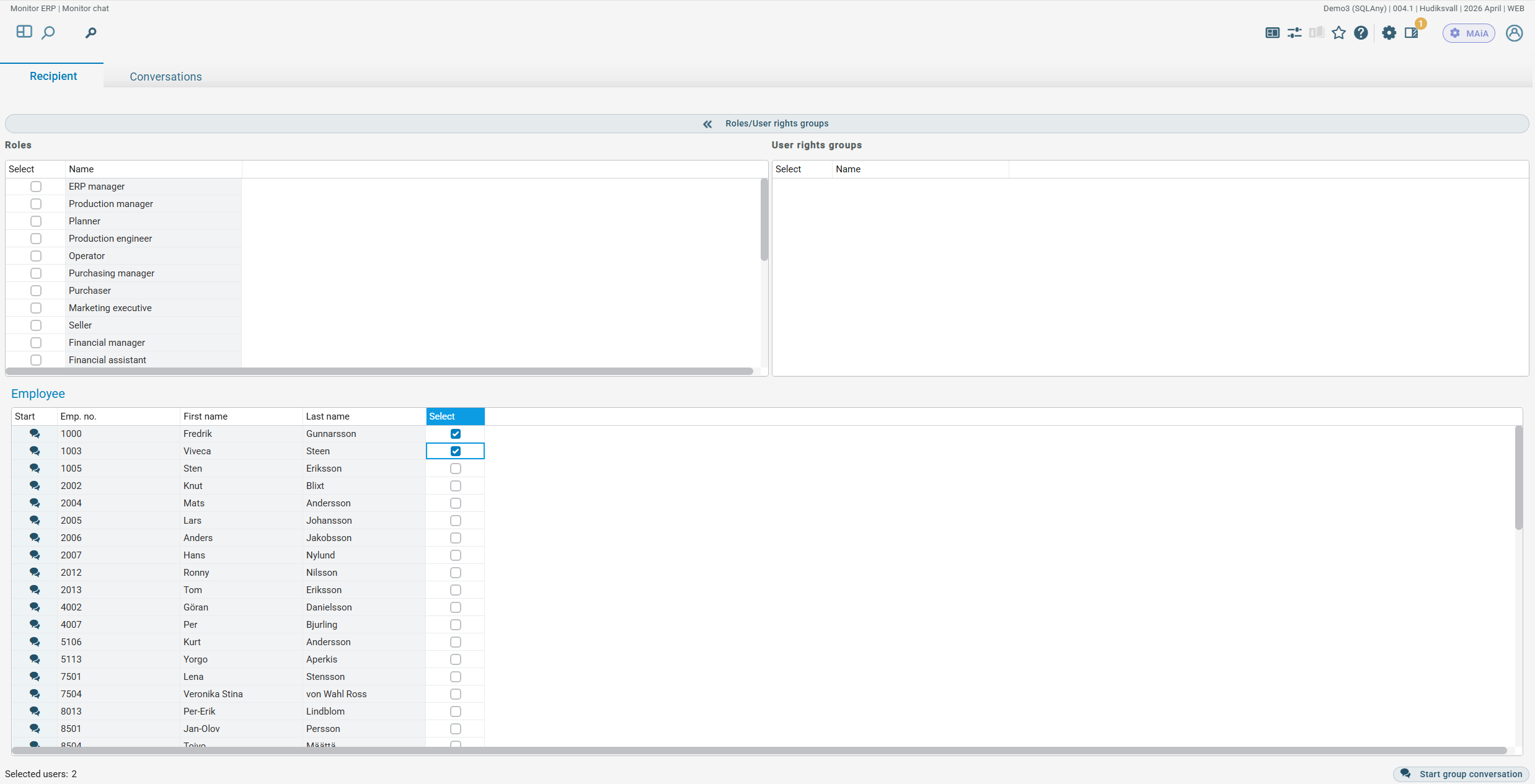
Under the tab Recipient you start new conversations. You can also select more than one person and start a group conversation. It is also possible to start a group conversation based on roles and user rights groups.
Conversations
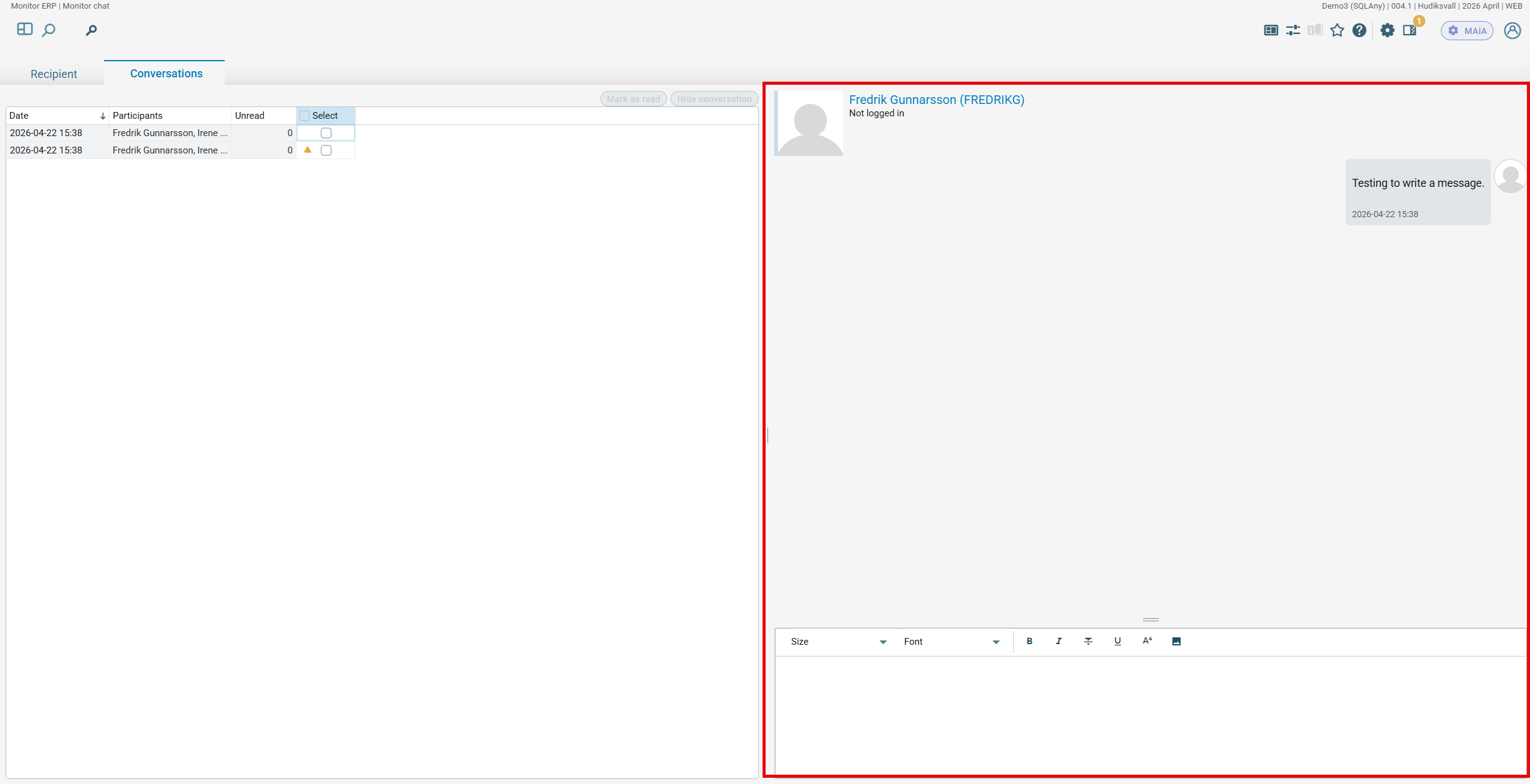
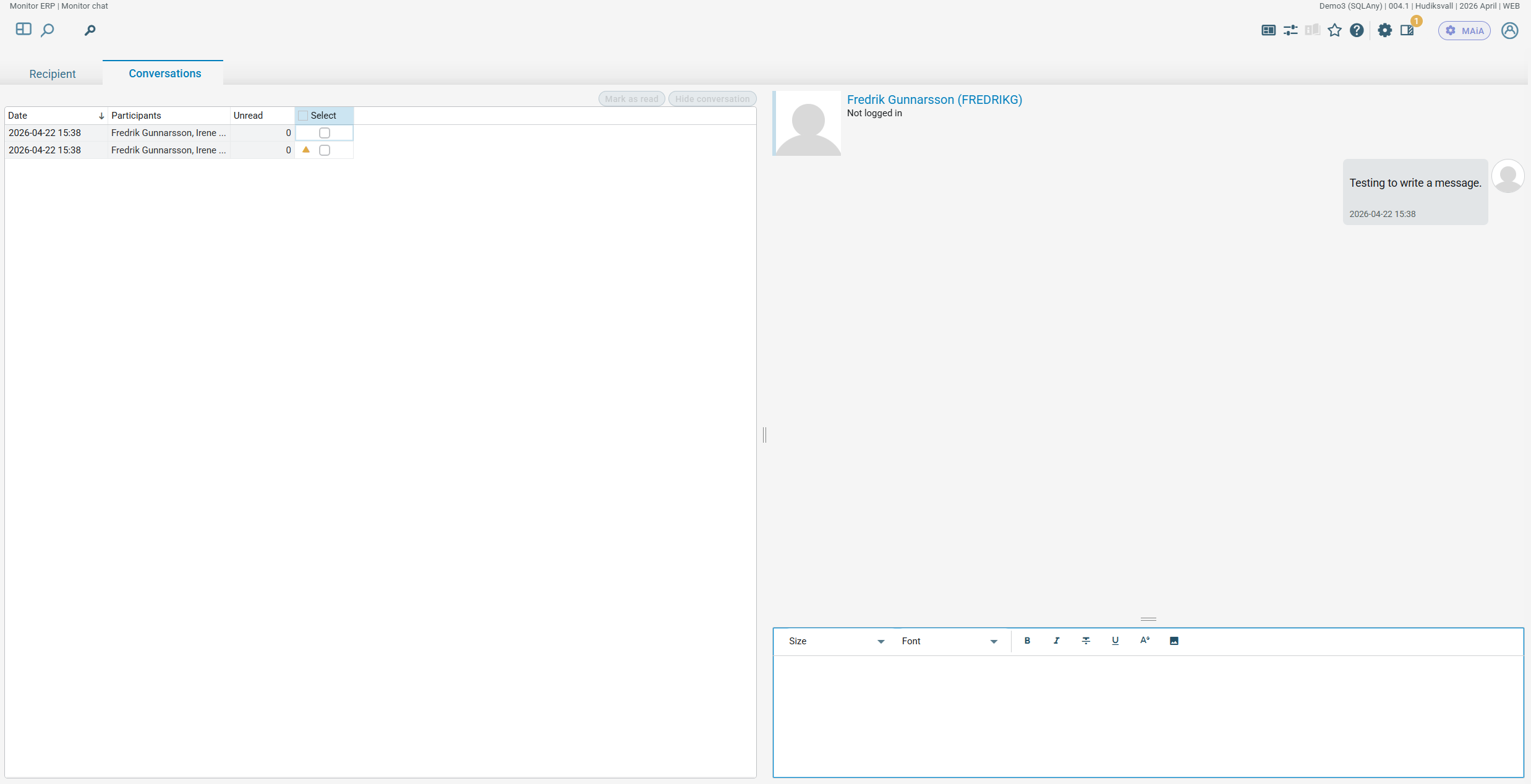
When you have started a new chat, the Conversations tab will open. There you type your messages in the chat window to the right. You see what time the chats were started, information about who is or was taking part in the chat, as well as see if there are any unread chat messages. You can mark messages as read, or you can hide them. You can also restart a saved chat/conversation and you will then see all of the messages in the chat window.
Chat window
The chat window under the Conversations tab works in the same way as, for example, Teams. You see the sent and received messages, and there is a small text editor where you can type and format texts, and insert hyperlinks from Monitor or image files. You send messages to the persons in the chat by pressing Enter. If an image/photo has been added in the personnel records for the persons in question, such image will be shown here.