Move and hide columns
You can change the standard layout in lists and tables. This is done by moving around the columns, hiding or inserting columns.
 Move a column
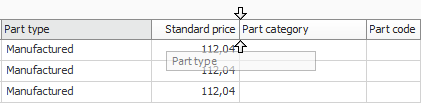
To move a column you drag the column heading sideways using you mouse pointer and then you drop it where you want to place it, between two other columns. You are helped by two arrows showing when you can drop the column heading. See the image example.
Hide or insert a column
To hide a column you drag the column heading from its place using the mouse and drop it above the other headings in the list or table.
The columns you hide here are only hidden on screen. Settings regarding which columns should be included on printouts, are not configured on the actual column but in the presentation for the list type.
In certain tables the More info button  is available in the standard layout. It then holds the columns not displayed by default.
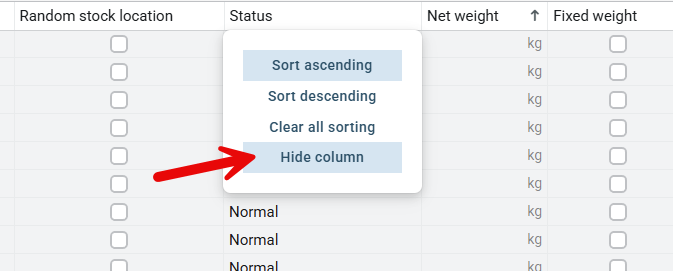
Please note! A column is only temporarily hidden this way.
Save layout
If you have modified the standard layout in a list or a table and want to save this permanently, this is done using the Layout button  on the toolbar menu in the procedure. In a list this also includes groupings made in the list (you group a list by dragging the column heading to the list's grouping header). Read more about Group lists.