myMonitor
Our customer platform myMonitor allows you to:
- Get an overview of all your companies
- Easily manage support cases
- View order history, quotes, invoices, and agreements
- See prices, request quotes, place orders with direct delivery
The customer platform is completely free for Monitor customers and can be activated in from version 25.7 onwards.
Get up and running with myMonitor
Only users with the role ERP manager are able to create the first account in myMonitor. This user will then be assigned the role of administrator in myMonitor. As an administrator you will have all user rights including user management, meaning that you can invite and assign user rights for other users on the customer platform.
Please note that an account must be created per company. Ensure that each company has a user with the role ERP manager. Roles are assigned under the Roles/User rights in the Users procedure.
Creating the first account
Here is how you as an ERP manager create an account in myMonitor:
-
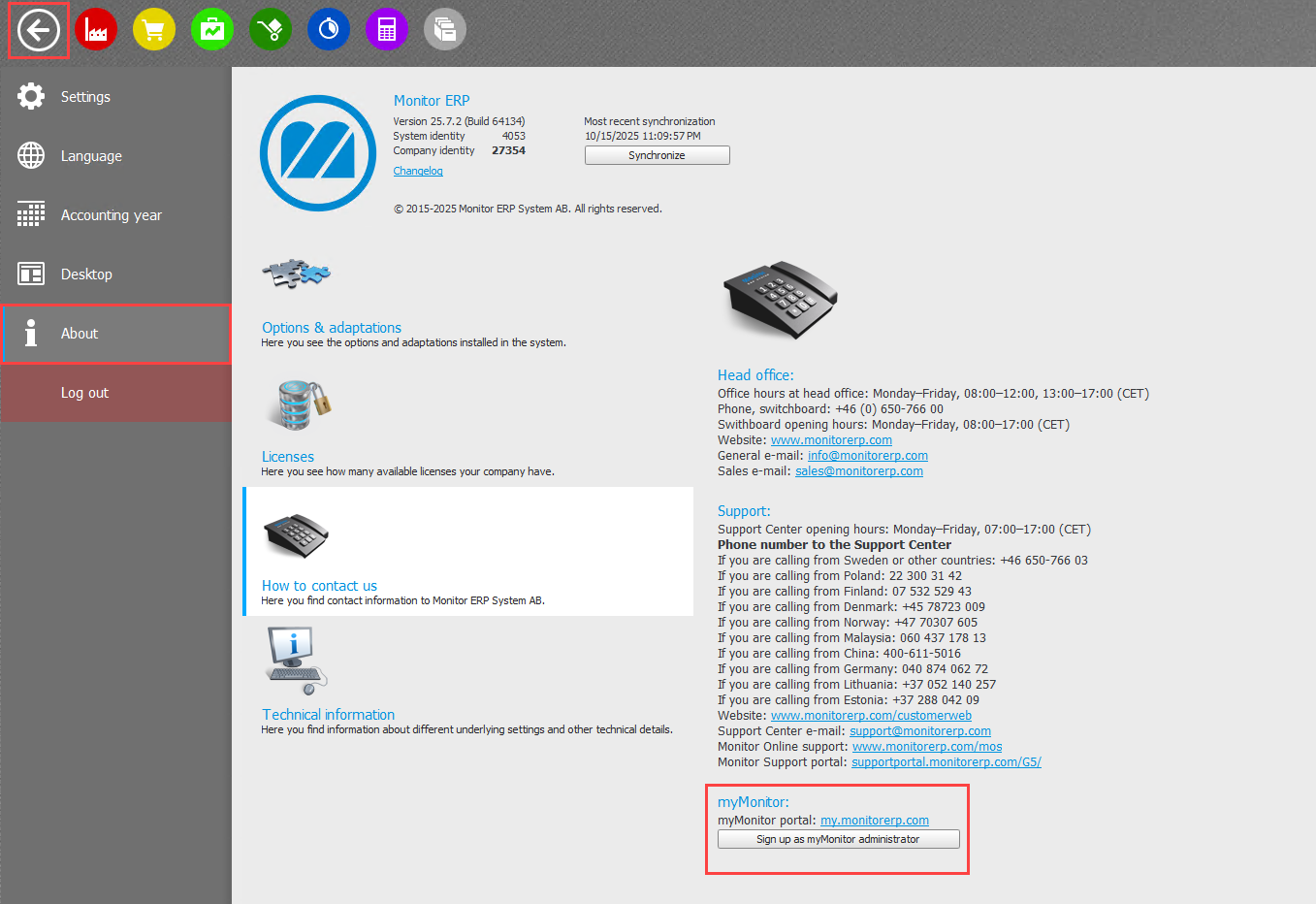
Open the Backstage module in Monitor ERP.
-
Select About.
-
Select Contact us.
-
Click the Sign up as myMonitor administrator button.
-
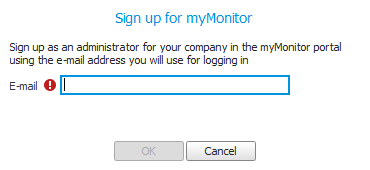
Enter the e-mail address you would like to use to log in.
-
Click OK.
-
An e-mail containing a link which is used to register accounts will then be sent to the e-mail address you entered Complete the registration by filling in your user details and clicking the Register account button. You will then be registered as an administrator in myMonitor. You will now have all user rights including user management
If you are an ERP manager in several companies, you need to log in Monitor ERP for each company and repeat the above steps.
Log in to myMonitor
The first time you log into myMonitor you have to configure settings for two-factor authentication (2FA).
-
Enter your e-mail address and password.
-
Click Log in.
-
Scan the QR code in your authentication app (and configure any settings required) or enter the phone number in order to receive the code for verification via text message/sms.
-
Enter the six-digit code from your app/text message in the field and then click on the arrow above to log in.
Adding other users
As a customer, you add users in myMonitor yourself. To be able to do this, you must be an administrator for the company in myMonitor.
Here is how you add other users:
-
Log into myMonitor.
-
Click on your name in the top right corner.
-
Select Manage users.
-
Click the Invite users button.
-
Enter the e-mail address of the user you would like to invite.
-
Then using the Select company button, select the company the user should be added for. You can select more than one company.
-
If you want to send to more than one user at the same time, you can add more invites using the New invitation button.
-
When you are finished, Click the Send invitation button to invite the user/s.
Changing user rights
The user rights of the user in myMonitor is determined by the role that has been selected for them. As an administrator, you can assign roles for registered users in Manage users. You select the role of the user in the Assigned role column next to the user's name.
The following roles are available:
- Administrator – Administrators have access to all functionality in myMonitor. That is: Support, My pages, Monitor Store, and User management.
- User – Users have access to almost all functionality in myMonitor. That is, Support, My pages, and Monitor Store, but does not have access to User management.
- Support user – Support users only have access to Support.
Functions in myMonitor
My pages
Here you can find information on your agreements, orders, quotes, and invoices.
Support
Here you can easily view, create, and manage support cases (in all companies) directly in the portal.
Monitor Store
Here you can view prices and find information on different license types. At the time of payment you can also request quotes and place orders for delivery.