Settings for customers
 Customer register
You must activate the following settings for customers in the Customer register in order to be able to send e-invoices.
- Open the Customer register procedure and select the customer in question.
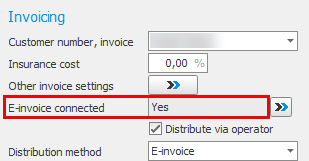
- In the E-invoice connected field in the Invoicing box, you will see if the customer is connected to Crediflow. By using the Open Crediflow dialog button
 , a dialog will open where an online search takes place in multiple different e-invoice register at Crediflow to see if the customer prefers or allows the suppliers to send e-invoice. The e-invoice registers in which the search takes place are the Swedish NEA, the Finnish TIEKE, the Norwegian ELMA, the Danish Nemhandel, and PEPPOL.
-
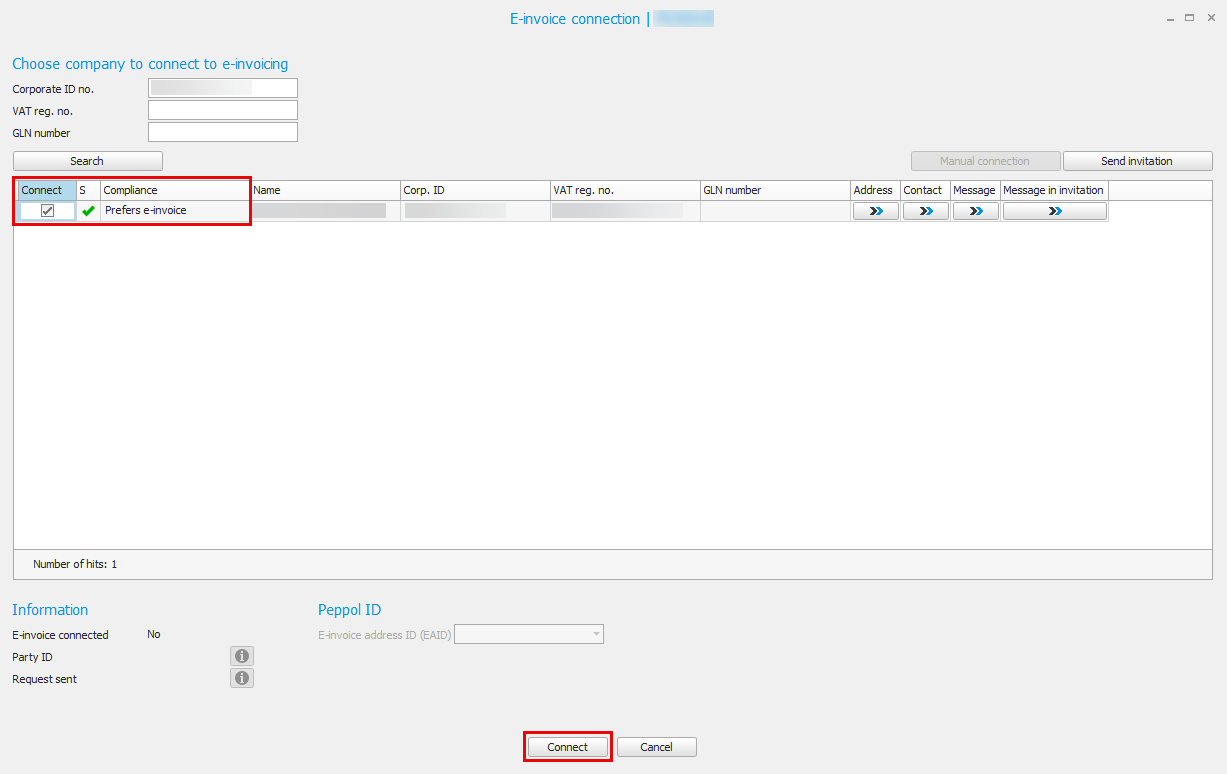
If the customer has approved Prefers e-invoice
If the customer prefers e-invoice, you can connect the customer directly by checking the Connect checkbox on the row and then clicking the Connect button at the bottom of the window.
If the customer has approved Allows e-invoice
If the customer allows e-invoice, it means that the customer can receive e-invoices but that they want to approve the sender before you can send e-invoices to them. In this case, you send a message with a request to the customer, where the customer can then approve that your company will send e-invoices. To send a request, you check the checkbox under the column Connect and then you use the button Send request at the bottom of the window.

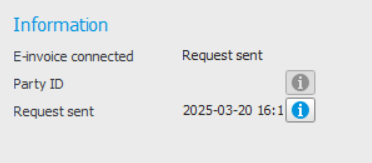
When a request has been sent, Request sent is shown next to E-invoice connected under Information at the bottom left of the window. You can also see the date when the request was sent.
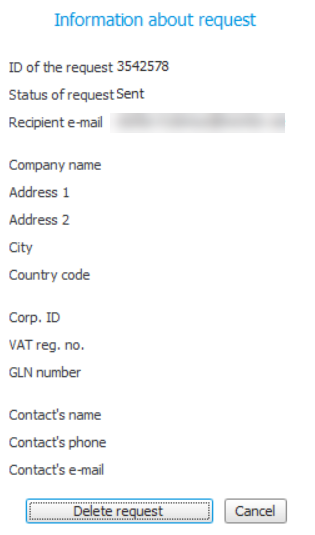
If you want to cancel your request, you use the information button next to Request sent, and then select the Delete request button in the Information about request window.
When you close the Crediflow dialog, you will also see that the status in the field next to E-invoice connected under Invoicing has changed to Request sent.
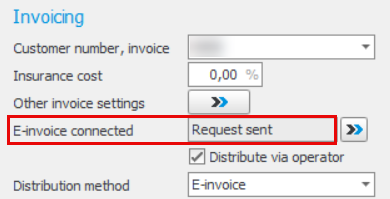
Once the customer has approved your request, the status in the field will be changed to Yes.
If the customer is not shown in the search result
If you don’t find the customer at all in the recipient register, you can send an invitation to the customer or perform a manual connection (only applies to German customers, see more under Manual connection below.
Send invitation
Invitation, in this case, is distributed by Crediflow and is sent as an e-mail to the customer, asking if they can receive e-invoices. You will receive an answer from Crediflow to the e-mail you have entered when the customer has responded to your invitation. If the customer accepts your invitation, you can do a new search in the register to connect the customer. You send an invitation by using the Send invitation button at the top right of the window.
Manual connection
Manual connection is needed for customers who want to receive invoices in ZUGFeRD format or who have a Leitweg ID. To be able to ,perform a manual connection the customer's mailing address needs to be registered with Germany as the country.
You can perform a manual connection if you know for certain that the customer wants to and can receive e-invoices, but the custom is not visible/available when you search for it in Crediflow’s recipient register. The purpose of the function is to be able to connect German customers who want to receive invoices in ZUGFeRD format or who have a Leitweg ID (B2G).
Connecting a customer using manual connection is like sending an invitation to a customer, with the only difference being that you, the sender, also accept the invitation on the customer's behalf. Please note! For this reason it is important that the customer’s information is correct and that the customer can receive e-invoices when you perform a manual connection.
When performing a manual connection, it is important that the information that you enter for the customer is correct, since this is the information the customer will be added with in Crediflow’s recipient register. The register is visible for everyone who searches for the customer to connect e-invoice.
The connection is performed in two steps:
-
First, a manual connection is carried out. This is done using the button Open Crediflow dialog
 . Then click the Manual connection button. Select if the connection type should be Leitweg ID or ZUGFeRD. Depending on your choice of connection type, you need to enter either the customer’s Leitweg ID or the customer’s e-mail address. The correct operator will be selected automatically based on the connection type. Enter the customer’s information, make sure that all the information is correct, and then click the Connect button.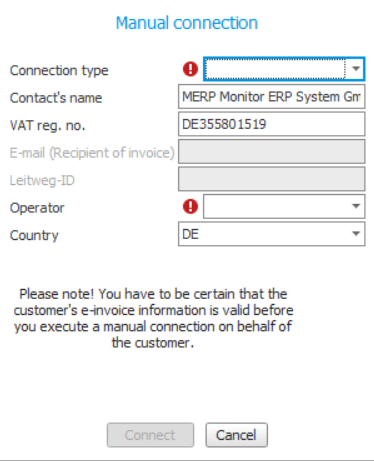
-
After a few minutes, when the customer has been registered and verified in Crediflow’s recipient register, you do an e-invoice search for the customer using the customer’s VAT registration number. The compliance for the customer should now be Prefers e-invoice and it should be possible to connect the customer. You connect to the customer by checking the Connect checkbox, and then clicking the Connect button.
Please note that searching for German customers works better using VAT registration numbers instead of corporate ID number, which is usually the most commonly used search term.You can also update the ZUGFeRD e-mail address for customers that are already connected by clicking the Update connection button in the Creditflow e-invoice dialog.


-
- If the customer Prefers e-invoice, you should mark the checkbox called Select and click the Connect button. (Make sure you select the correct row referring to GLN if you get multiple search results e.g. for authorities/government).
- If the customer Allows e-invoice, you should instead send a message with an invitation to the customer, where the customer can then approve that your company will send e-invoices. To send an invitation you should use the Send invitation button. Status will be changed to Invitation sent. The invitation is taken care of by the operator and once the recipient has accepted the invitation, the Compliance is changed from Invitation sent to Prefers.
- The customer can also have Does not allow and this means the customer does not want to receive e-invoices. In that case you choose not to connect the customer and do not send an e-mail message with an invitation.
Use the Manual connection button in the dialog window in cases where the recipient is not found in any of the registers, but needs to be added for you to be able to communicate electronically. An example can be if your recipient is in a different country and the communication between your operators has to be set up manually in order to send and receive e-invoice. This is also an regular invitation and means that you send an e-mail message to the party you wish to invite, but with an inquiry if they can send/receive invoices electronically. The recipient of the invitation will then be asked to respond if they are in a position to communicate electronically, how they wish to send/receive, which operator should be used, and so on.
When the customer is connected to Crediflow, the Distribution method field is automatically set to E-invoice. If you want the operator to take care of all distribution of your invoices, that is, including e-mail and paper invoices, then you can manually connect the customer to the operator by checking the box Distribute via operator. Then you enter which distribution method the operator should use to distribute the invoice to customer: e-mail or paper invoice (printed). Please note! Paper invoice/PDF might also involve additional cost per invoice. If you wish to send attachments (linked files) together with your invoices, you need to activate the setting called Enclose embedded PDF in XML in your settings for export of e-invoice. Such linked files/attachments will be distributed in the same way as you selected for invoices.