Incoming payments
Manual registration of incoming payments
When registering payments, the system checks if there is a cash discount on the invoice. If the entered payment date is the same date as the cash discount date, or earlier, then the discounted amount will be suggested in the field Paid amount, but it can be adjusted. Please note! The days of grace for cash discount which you entered in the system settings, will also be taken into consideration. When cash discount is given, the remaining amount will be set to zero and the system will automatically suggest the write-off code Cash discount. If you are using cash discounts you should add the columns Cash discount date and Cash discount % from More info (see image).
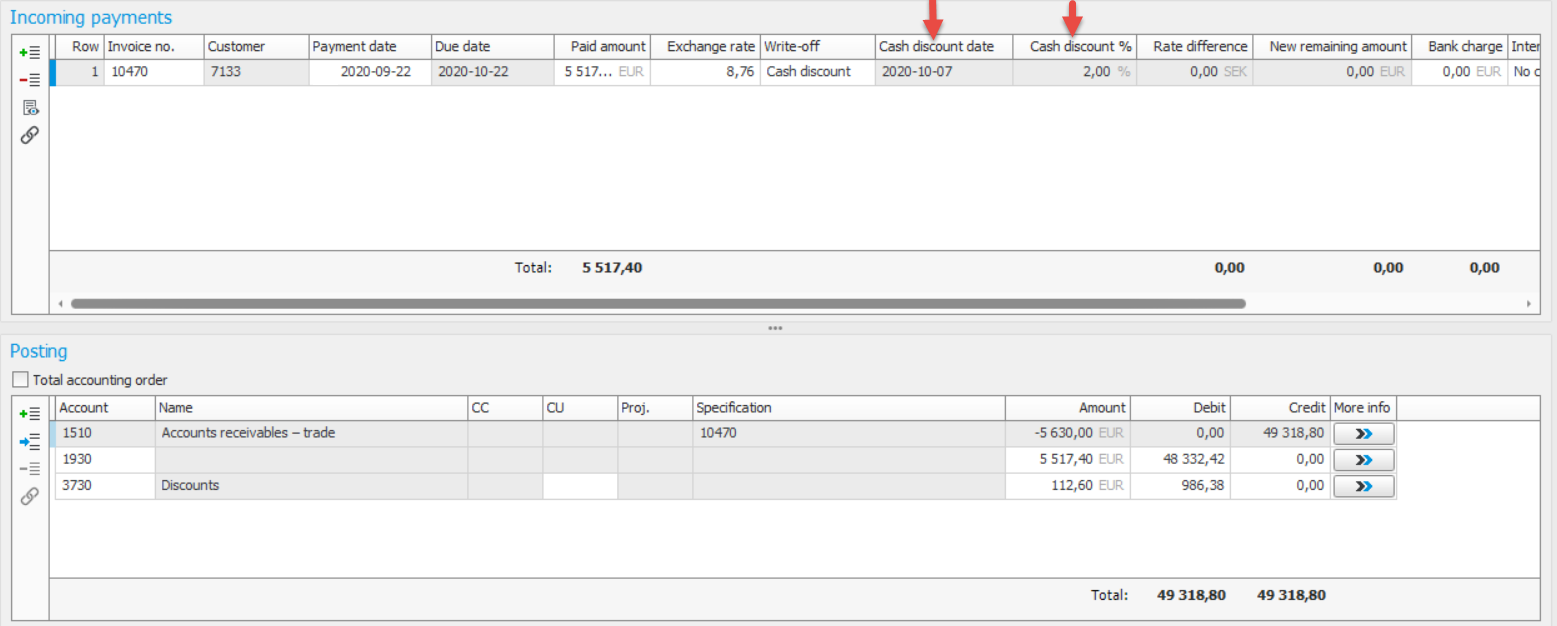
If there are several cash discount limits on the invoice, you will see information about the cash discount limit which is met. These fields are blank in the system if the terms for cash discount have not been met.
If the customer has paid too late to be eligible for cash discount, the remaining amount of the invoice will be suggested. If the customer has still deducted the cash discount in the payment, then you can manually enter the paid reduced amount. The suggested write-off amount will then be Partial payment. If you wish to handle it as a discount, you can manually select Cash discount as write-off code.
When there is a cash discount on the payment, the discount is automatically posted on the standard account for cash discount. The VAT report will also be affected depending on whether you have chosen that the basis for cash discount should be based on the gross or net amount. If the cash discount is based on the gross amount, the VAT also needs to be adjusted. This is done through dividing the posting of the cash discount as per the below example:
Example:
Invoice amount: 12,500
VAT amount: 2,500 (25%)
Paid amount: 12,250 with a 2% cash discount
Cash discount: 250
|
Account |
Debit |
Credit |
Explanation |
|---|---|---|---|
|
3XXX |
200 |
|
Cash discount (net). 250 x 0.8 |
|
26XX |
50 |
|
Output VAT. 250 x 0.2 |
Here you are able to read more about how the cash discount is posted depending on whether you have chosen the gross or net amount as the basis for the cash discount.
Confirmation via file
When confirming via file, cash discount terms (including days of grace) will automatically be taken into consideration. If the payment date is within these terms and the customer has used the discount, the remaining amount is set to zero and the write-off code for cash discount is applied according to the same logic as for manual payments. This will result in posting as in the example under Incoming payments.
If the payment date is later than the cash discount date and the customer has used the discount, you will see the information "Incorrect amount" in the Status field. In this case you have to manually match the payment and the system will then suggest the write-off code Partial payment. If you wish to give the customer the discount anyway, you can manually select Cash discount as write-off code.