Monitor Mobile
A mobile client, Monitor Mobile, is provided with Monitor ERP. This can be run in a regular browser or as an app on Android or IOS. Monitor Mobile has a clear focus on what is most important for the mobile work flow, quick and easy reporting and a reduced need of printouts. Before using Monitor Mobile, Monitor ERP web server must be installed, and a few settings must be configured for those who are going to use Monitor Mobile.
You can read more about the procedures and other features in the online help for Monitor Mobile which is available in English and Swedish.
 Settings on user
Settings which need to be configured by the administrator under the Security tab in the Users procedure in the Windows client.
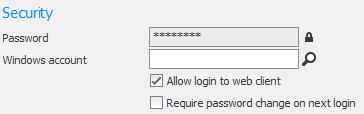
- Activate the Allow login to Monitor Mobile setting. When the setting is activated, one of the following settings must also be entered.
- Enter a password in the Password field. The password is then used when logging into Monitor Mobile.
- Link an account in Windows to the user with the Windows account setting. Then you do not have to enter a password in the password field. In this case, the Windows account password is used when logging into Monitor Mobile.
Installation of web server for Monitor Mobile
To use Monitor Mobile and the app, the Monitor ERP Web server must be installed in your network. If your IT department or your IT supplier should handle the installation, you find an installation guide här. If you need new installation files, you can contact the Monitor Support Center by phone: +46 650 766 03 or by e-mail: support@monitorerp.com The installation of the web server can also be performed by a technician from the Monitor Support Center.
Web browser
Monitor Mobile can be run on a modern web browser with support for HTML5.
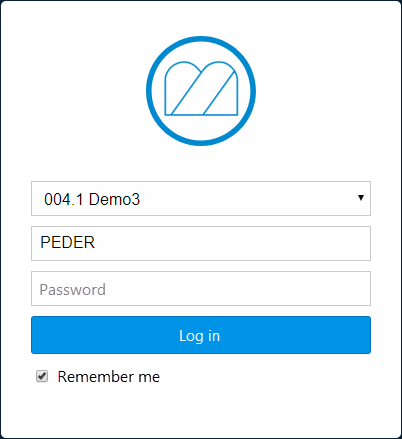
You get the address to the web server by your administrator. When you have entered the address in the web browser, a login page is shown. There you enter your user name in Monitor ERP and the password supplied by your administrator. Alternatively, it is the same password you use for your Windows account.
App for Android and IOS
You can also run Monitor Mobile as an app on smartphones and tablets. There is support for Android and IOS. You can download the app from Google Play, where it's called Monitor Mobile, or from Apple App Store where it’s called Monitor G5.
When you start the app for the first time you are directed to the page for settings. There you enter the URL (web address) to the web server and you can choose if notifications should be displayed on the unit. You get the information about the web server's URL from your administrator.
Procedures in Monitor Mobile
Monitor Mobile client currently contains the below procedures that are suitable for use on smartphones and tablets. You have the same user rights in these procedures as you have in the corresponding procedures (and warehouse) in the Windows client.
Manufacturing
Purchase
- Report arrival
- Approve purchase order
- Authorize invoice
- Receiving inspection
- Undo arrival reporting
Sales
- Customer list
- CRM view
- Report delivery (pick list)
Stock
- Part list
- Stock count
- Stock count in list
- Create stock count list
- Move stock balance
- Priority plan – Stock
- Direct withdrawal
- Direct arrival
- Register case
- Case list
Time recording
- Attendance list
- Recording terminal
Accounting
- Signing payments
You can read more about the procedures and other features in the online help for Monitor Mobile, which is available in English and Swedish.