Click the image to enlarge it.
Click the image to enlarge it.
-
 – The row is supplied by the balance.
 -
 – The row is supplied by existing order.
 -
 – The row is supplied by the balance.
 -
 – The row is supplied by existing order.
On the button you will also see an asterisk (*) if there is an alternative work center/supplier which would result in an earlier delivery date/finish date if you should replan the order using the alternative work center/supplier.
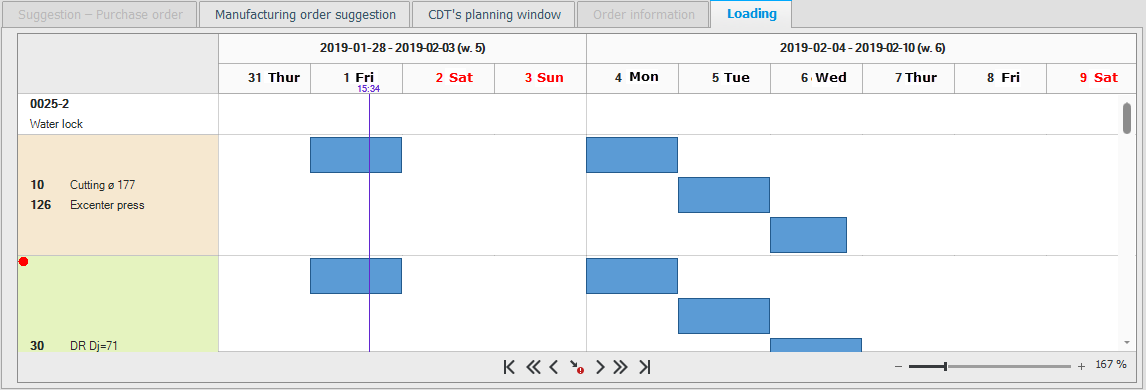
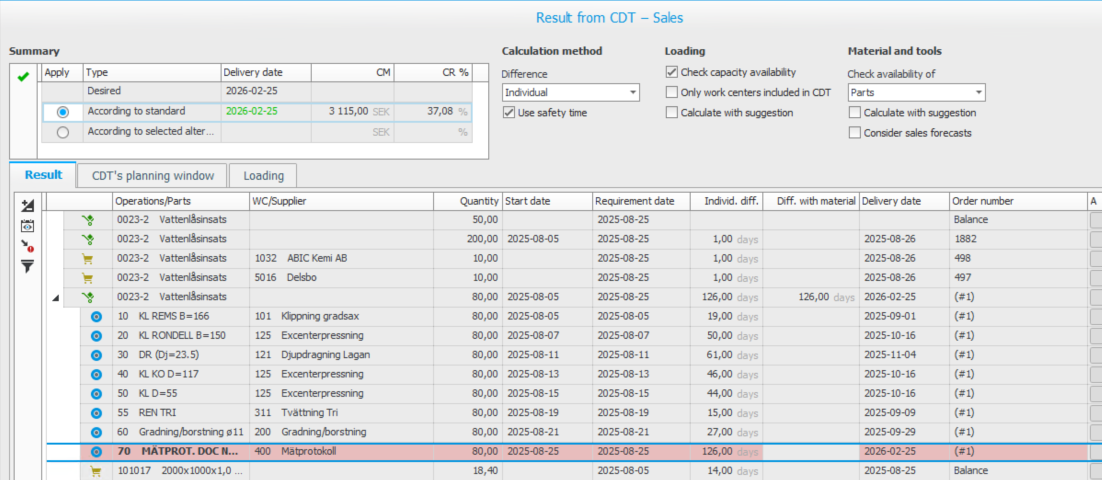
In the result window you see the Results tab which displays the result of the delivery times check and what supplies the requirement/need (balance, existing orders, and suggestions). The tab called CDT's planning window shows how the planning will look and the Loading tab shows the loading graphically.
On the button you will also see an asterisk (*) if there is an alternative work center/supplier which would result in an earlier delivery date/finish date if you should replan the order using the alternative work center/supplier.
-
 – Expand/Minimize all rows. – This will expand/minimize the rows in the tab.
 -
 – Run the check of delivery times again. If you select/add an alternative work center/supplier you can run the CDT again using this button.
 -
 – Run the check of delivery times again. If you select/add an alternative work center/supplier you can run the CDT again using this button.
 -
 – Go to critical operation/material. Using this button you can navigate in the table to the first operation or the first material which is critical.
With the help of the result window you can investigate where there are critical operations and material, that is, which suppliers and work centers have the greatest difference between the planned delivery date/finish date and the actual delivery date/finish date. The difference is shown in number of work days. This is a help to be able to replan orders to make them ready for delivery sooner.
 With the help of the result window you can investigate where there are critical operations and material, that is, which suppliers and work centers have the greatest difference between the planned delivery date/finish date and the actual delivery date/finish date. The difference is shown in number of work days. This is a help to be able to replan orders to make them ready for delivery sooner.
Summary
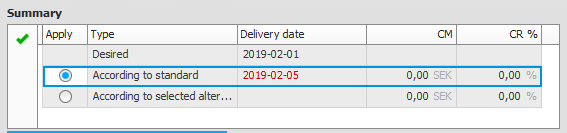
In the Summary table in the upper part of the result window you will only see information if manufacturing or purchase is required.
On the first row you see the entered delivery date/finish date of the order. On the next row you see what will be the earliest delivery date if the standard work centers are used, and also what will be the order's contribution margin and contribution ratio. On the third row you see which the earliest delivery date/finish date will be if the alternative suppliers and work centers selected by CDT are used. You will also see the order’s contribution margin and contribution ration will be in that case.
If there are alternative suppliers or work centers selected by CDT, then you can check the Apply box on the third row if you wish to use that alternative, or you can keep the default setting to use standard work centers.
By using the button Confirm you confirm which row that should be used. The result window will then close and the delivery date/finish date of that row will be entered on the order.
Purchase order suggestion
- The Purchase order suggestion tab is active if CDT is run on a purchased part and the check delivery times function has created purchase order suggestions, that is, you need to make purchases to supply the order/order row.
- In the table you will then see information about the purchase order suggestions with supplier, quantity, requirement date, delivery date, and the material row’s difference (the entity’s difference).
- Supplier links on parts are shown if you click the button Alternative suppliers
 which then is available. Here you can see if alternative suppliers and their lead time might affect if it is possible to obtain an earlier delivery of critical material. Under More info button
  you will see the default supplier's lead time as standard.
 - Manufacturing order suggestion
- The Manufacturing order suggestion tab is active if you run an analysis on a manufactured part and the CDT function has created manufacturing order suggestions, that is, you need to manufacture to supply the order/order row.
- In the table you will then see information about the manufacturing order suggestions with the order's main part, its operations and materials. In the next node (level) you see included parts and material. If you have selected that the CDT should also check included stock driven parts (via a system settings) you will also see information about those parts' operations and materials in cases where balance is not already available. For each operation and material you will see work center and linked default supplier, quantity, start date, requirement date, individual difference* and puzzle difference* in number of days, and delivery date. The operations and materials which are most critical are shown in a light red color. With the button Go to critical operation/material you mark the first critical operation/material.
By clicking the button Alternative work centers it is possible to change work center for critical operations to obtain earlier finish dates. Supplier links on material are shown if you click the button Alternative suppliers which then is available. Here you can see if alternative suppliers and their lead time might affect if it is possible to obtain an earlier delivery of critical material or if it is possible to purchase material at a lower cost.
* The CDT calculates differences both by row and as a puzzle difference. Which of these results should be inherited to the result field of the order row is determined by the system setting called Difference. The Individual options in this setting means the CDT only will use the maximum difference from included/incorporated operations and material. The Puzzle option in this setting means the CDT will try to place all included/incorporated operations and material in the loading plan, exactly as it is on the order (the CDT with then used the order as a piece in a puzzle an try to fit it in). If this does not succeed, 999 will be shown as the puzzle difference for the row in question.
CDT's planning window
 The tab CDT's planning window is always active. Here you see the planning window for the part which was in focus under the Manufacturing order suggestion tab.
The planning window looks the same as in the Part register and Requirement calculation procedures. Customer orders, manufacturing orders, suggestions, and material requirements from the CDT function are marked with (CDT) in the Type column.
Order information
The Order information tab is active if there is an existing manufacturing order which can supply the order/order row. Here you can see the same information as in the Manufacturing order information procedure.
Loading